Hoofdstuk 64Material
Slots, toewijzing en de instellingen rond de shader — de nodes zelf komen in deel G
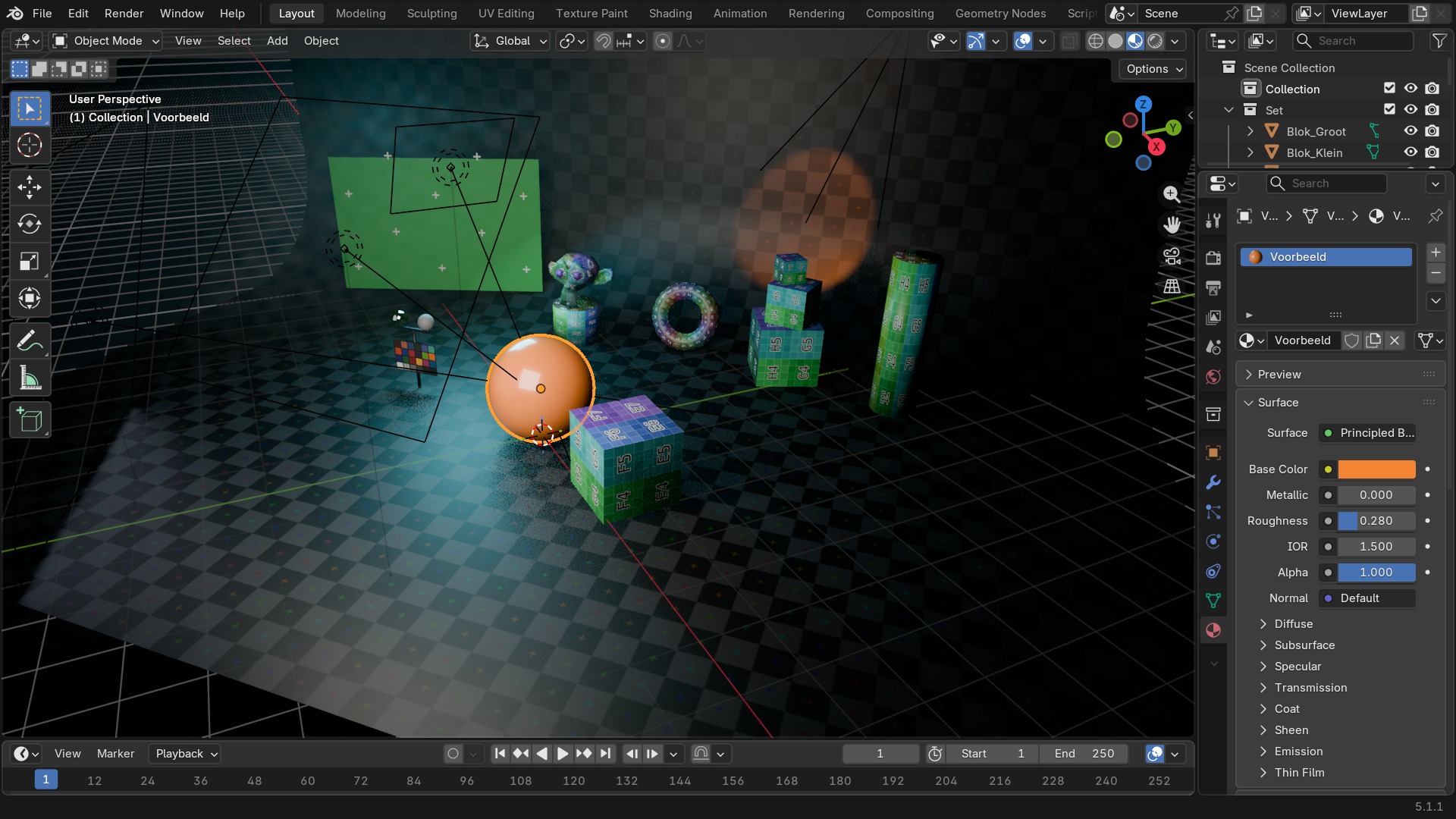
De Material Properties-tab (het bal-met-dambordpatroon-icoon) beheert Material-slots op het actieve object en de instellingen rond de shader: Settings (Blend Mode, Backface Culling), Viewport Display, en bij Cycles Surface/Volume/Displacement. De node-opbouw van het materiaal zelf — de Principled BSDF en alle shader-nodes — staat in deel G.
 RECCONCEPT00:00:00:00schoolium
Slots tegenover het materiaal zelf
Bovenaan de tab staat de Material Slots-lijst: elke rij is een plek op het object waar een materiaal aan hangt, niet het materiaal zelf. Eén materiaal-datablock kan in meerdere slots op meerdere objecten hergebruikt worden (herkenbaar aan het aantal Users naast de naam); een object kan ook meerdere verschillende materialen dragen, toegewezen aan losse face-selecties in Edit Mode via Assign.
Onder de slotenlijst begint pas het materiaal zelf: naam, Use Nodes (bijna altijd aan), en de panelen die hieronder in dit hoofdstuk staan.
 RECBLENDER 5.1 · MATERIAL00:00:00:001920×1080
Alle panelen van de Material-tab
Rechtstreeks uit Blender 5.1 uitgelezen — 31 panelen.
| Paneel |
|---|
| Animation |
| Animation |
| CYCLES_PT_context_material |
| Custom Properties |
| Custom Properties |
| Displacement |
| Displacement |
| EEVEE_MATERIAL_PT_context_material |
| Freestyle Line |
| Grease Pencil Material Slots |
| Line Art |
| Preview |
| Preview |
| Preview |
| Settings |
| – Surface |
| – Volume |
| Settings |
| – Surface |
| – Volume |
| Settings |
| Surface |
| Surface |
| Surface |
| – Fill |
| – Stroke |
| Thickness |
| Viewport Display |
| – Settings |
| Volume |
| Volume |
Alle material-instellingen
Rechtstreeks uit Blender 5.1 uitgelezen.
| Instelling | Type | Standaard | Bereik | Wat hij doet (tooltip uit Blender) |
|---|---|---|---|---|
| Name | STRING | – | – | Unique data-block ID name (within a same type and library) |
| Full Name | STRING | – | – | Unique data-block ID name, including library one if any |
| Type | ENUM | ACTION | Action, Armature, Brush, Cache File, Camera, Collection, Curve, Curves, Font, Grease Pencil, Grease Pencil v3, Image, Key, Lattice, Library, Light, Light Probe, Line Style, Mask, Material, Mesh, Metaball, Movie Clip, Node Tree, Object, Paint Curve, Palette, Particle, Point Cloud, Scene, Screen, Sound, Speaker, Text, Texture, Volume, Window Manager, Workspace, World | Type identifier of this data-block |
| Session UID | INT | 0 | -10000 – 10000 | A session-wide unique identifier for the data block that remains the same across renames and internal reallocations, unchanged when reloading the file |
| Is Evaluated | BOOLEAN | uit | – | Whether this ID is runtime-only, evaluated data-block, or actual data from .blend file |
| Users | INT | 0 | 0 – 10000 | Number of times this data-block is referenced |
| Fake User | BOOLEAN | uit | – | Save this data-block even if it has no users |
| Extra User | BOOLEAN | uit | – | Indicates whether an extra user is set or not (mainly for internal/debug usages) |
| Embedded Data | BOOLEAN | uit | – | This data-block is not an independent one, but is actually a sub-data of another ID (typical example: root node trees or master collections) |
| Linked Packed | BOOLEAN | uit | – | This data-block is linked and packed into the .blend file |
| Missing Data | BOOLEAN | uit | – | This data-block is a place-holder for missing linked data (i.e. it is [an override of] a linked data that could not be found anymore) |
| Runtime Data | BOOLEAN | uit | – | This data-block is runtime data, i.e. it won't be saved in .blend file. Note that e.g. evaluated IDs are always runtime, so this value is only editable for data-blocks in Main data-base. |
| Editable | BOOLEAN | uit | – | This data-block is editable in the user interface. Linked data-blocks are not editable, except if they were loaded as editable assets. |
| Tag | BOOLEAN | uit | – | Tools can use this to tag data for their own purposes (initial state is undefined) |
| Is Indirect | BOOLEAN | uit | – | Is this ID block linked indirectly |
| Surface Render Method | ENUM | DITHERED | Dithered, Blended | Controls the blending and the compatibility with certain features |
| Displacement Method | ENUM | BUMP | Bump Only, Displacement Only, Displacement and Bump | Method to use for the displacement |
| Blend Mode | ENUM | OPAQUE | Opaque, Alpha Clip, Alpha Hashed, Alpha Blend | Blend Mode for Transparent Faces (Deprecated: use 'surface_render_method') |
| Clip Threshold | FLOAT | 0.5 | 0 – 1 | A pixel is rendered only if its alpha value is above this threshold |
| Use Transparency Overlap | BOOLEAN | aan | – | Render multiple transparent layers (may introduce transparency sorting problems) |
| Show Backface | BOOLEAN | aan | – | Render multiple transparent layers (may introduce transparency sorting problems) (Deprecated: use 'use_tranparency_overlap') |
| Backface Culling | BOOLEAN | uit | – | Use back face culling to hide the back side of faces |
| Shadow Backface Culling | BOOLEAN | uit | – | Use back face culling when casting shadows |
| Light Probe Volume Backface Culling | BOOLEAN | aan | – | Consider material single sided for light probe volume capture. Additionally helps rejecting probes inside the object to avoid light leaks. |
| Transparent Shadows | BOOLEAN | aan | – | Use transparent shadows for this material if it contains a Transparent BSDF, disabling will render faster but not give accurate shadows |
| Raytrace Transmission | BOOLEAN | uit | – | Use raytracing to determine transmitted color instead of using only light probes. This prevents the surface from contributing to the lighting of surfaces not using this setting. |
| Raytrace Transmission | BOOLEAN | uit | – | Use raytracing to determine transmitted color instead of using only light probes. This prevents the surface from contributing to the lighting of surfaces not using this setting. Deprecated: use 'use_raytrace_refraction'. |
| Subsurface Translucency | BOOLEAN | uit | – | Add translucency effect to subsurface (Deprecated) |
| Refraction Depth | FLOAT | 0 | 0 – onbegrensd | Approximate the thickness of the object to compute two refraction events (0 is disabled) (Deprecated) |
| Thickness Mode | ENUM | SPHERE | Sphere, Slab | Approximation used to model the light interactions inside the object |
| Thickness From Shadow | BOOLEAN | uit | – | Use the shadow maps from shadow casting lights to refine the thickness defined by the material node tree |
| Volume Intersection Method | ENUM | FAST | Fast, Accurate | Determines which inner part of the mesh will produce volumetric effect |
| Max Vertex Displacement | FLOAT | 0 | 0 – onbegrensd | The max distance a vertex can be displaced. Displacements over this threshold may cause visibility issues. |
| Preview Render Type | ENUM | SPHERE | Flat, Sphere, Cube, Hair, Shader Ball, Cloth, Fluid | Type of preview render |
| Preview World | BOOLEAN | uit | – | Use the current world background to light the preview render |
| Pass Index | INT | 0 | 0 – 32767 | Index number for the "Material Index" render pass |
| Use Nodes | BOOLEAN | uit | – | Use shader nodes to render the material |
| Texture Slot Images | COLLECTION | – | – | Texture images used for texture painting |
| Texture Slots | COLLECTION | – | – | Texture slots defining the mapping and influence of textures |
| Active Paint Texture Index | INT | 0 | 0 – 32767 | Index of active texture paint slot |
| Clone Paint Texture Index | INT | 0 | 0 – 32767 | Index of clone texture paint slot |
| Diffuse Color | FLOAT | 0.8 | 0 – 1 | Diffuse color of the material |
| Specular Color | FLOAT | 1 | 0 – 1 | Specular color of the material |
| Roughness | FLOAT | 0.4 | 0 – 1 | Roughness of the material |
| Specular | FLOAT | 0.5 | 0 – 1 | How intense (bright) the specular reflection is |
| Metallic | FLOAT | 0 | 0 – 1 | Amount of mirror reflection for raytrace |
| Line Color | FLOAT | 0 | 0 – 1 | Line color used for Freestyle line rendering |
| Line Priority | INT | 0 | 0 – 32767 | The line color of a higher priority is used at material boundaries |
| Is Grease Pencil | BOOLEAN | uit | – | True if this material has Grease Pencil data |
Toewijzen per face, niet alleen per object
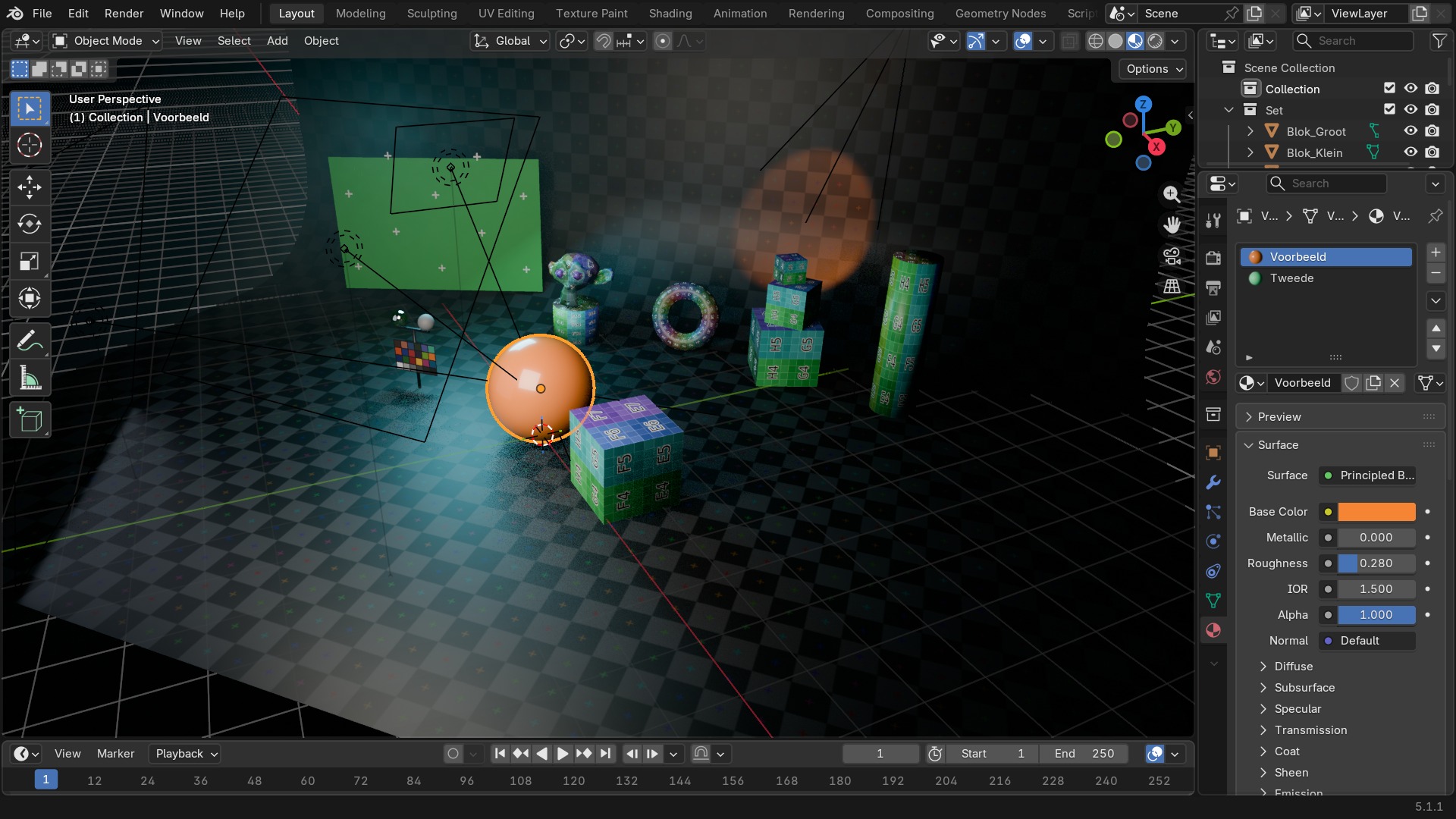
In Edit Mode, met een face-selectie actief, koppelt Assign het gekozen materiaal-slot aan precies die faces — zo krijgt bv. een fles zowel een glas-materiaal als een dop-materiaal zonder twee losse objecten te hoeven maken. Select en Deselect in datzelfde paneel werken omgekeerd: ze tonen welke faces al aan een slot hangen.
Materiaalslots zelf zijn per-object of per-mesh-datablock te koppelen (Link-dropdown naast de slotenlijst): Object betekent dat elk object met dezelfde mesh toch een eigen materiaal-set kan hebben, Data betekent dat alle objecten die dezelfde mesh delen ook hetzelfde materiaal delen.
 RECBLENDER 5.1 · MATERIAL-ASSIGN00:00:00:001920×1080
Settings ontleed: Blend Mode en Backface Culling
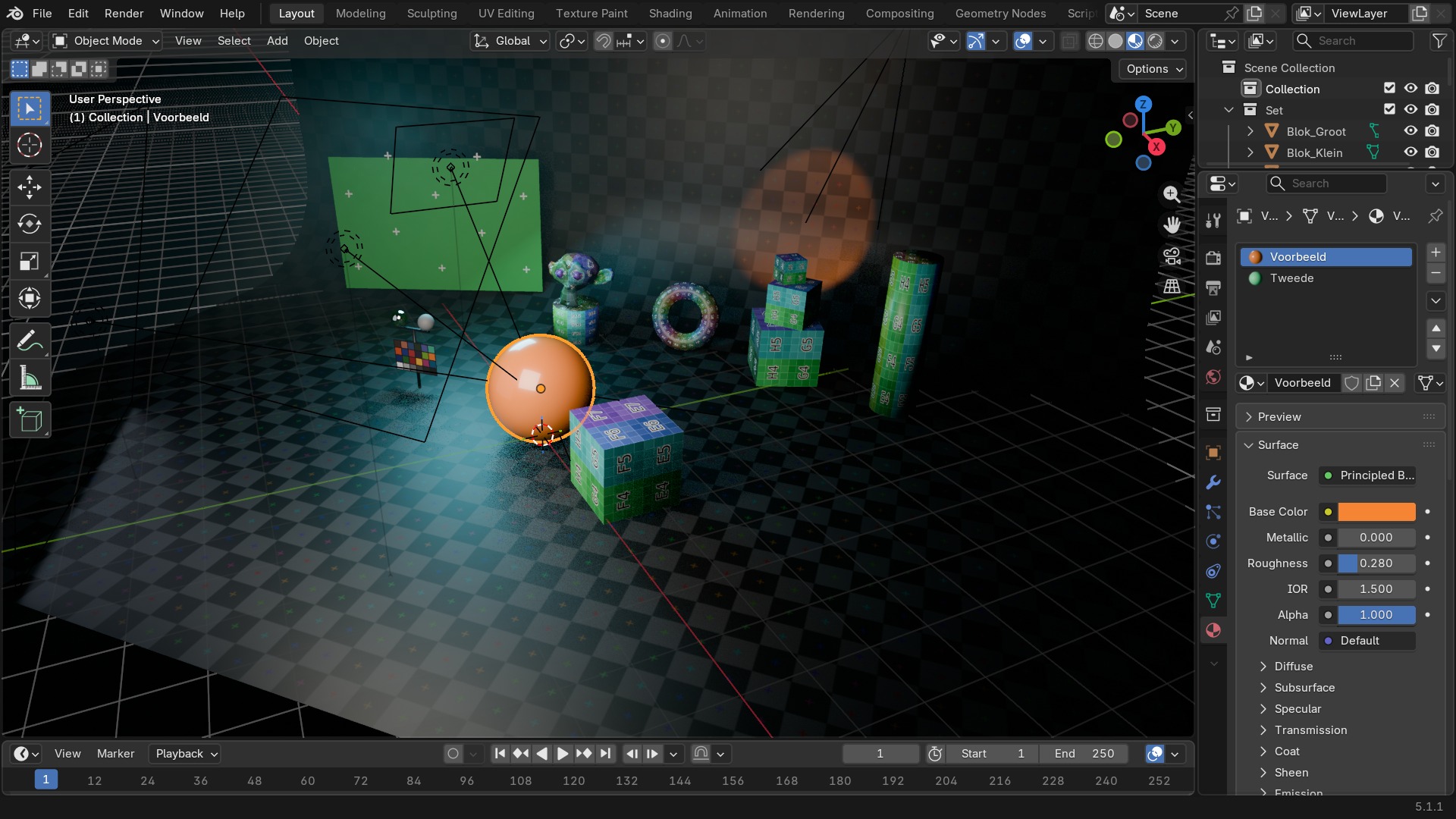
- 1Opaque
Geen doorschijnendheid, de snelste en stabielste keuze; standaard voor de meeste materialen. Het paneel “Settings” met de Blend Mode staat verder naar onder, buiten dit schermdeel.
- 2Alpha Clip / Hashed
Alles-of-niets doorschijnendheid (Clip) of korrelige ruis die bij hogere samples wegvalt (Hashed) — geen sorteerproblemen. Ook dit staat in “Settings”, buiten dit schermdeel.
- 3Alpha Blend
Volledig vloeiende doorschijnendheid, maar traag en gevoelig voor sorteerartefacten bij overlappende vlakken.
- 4Backface Culling
Verbergt de achterkant van elke face — bespaart rekenwerk bij enkelzijdige geometrie zoals bladeren, maar geeft een gat als de camera er toch achter komt. Ook deze schakelaar zit in “Settings”, verder naar onder.
Cycles-specifiek: Surface, Volume en Displacement
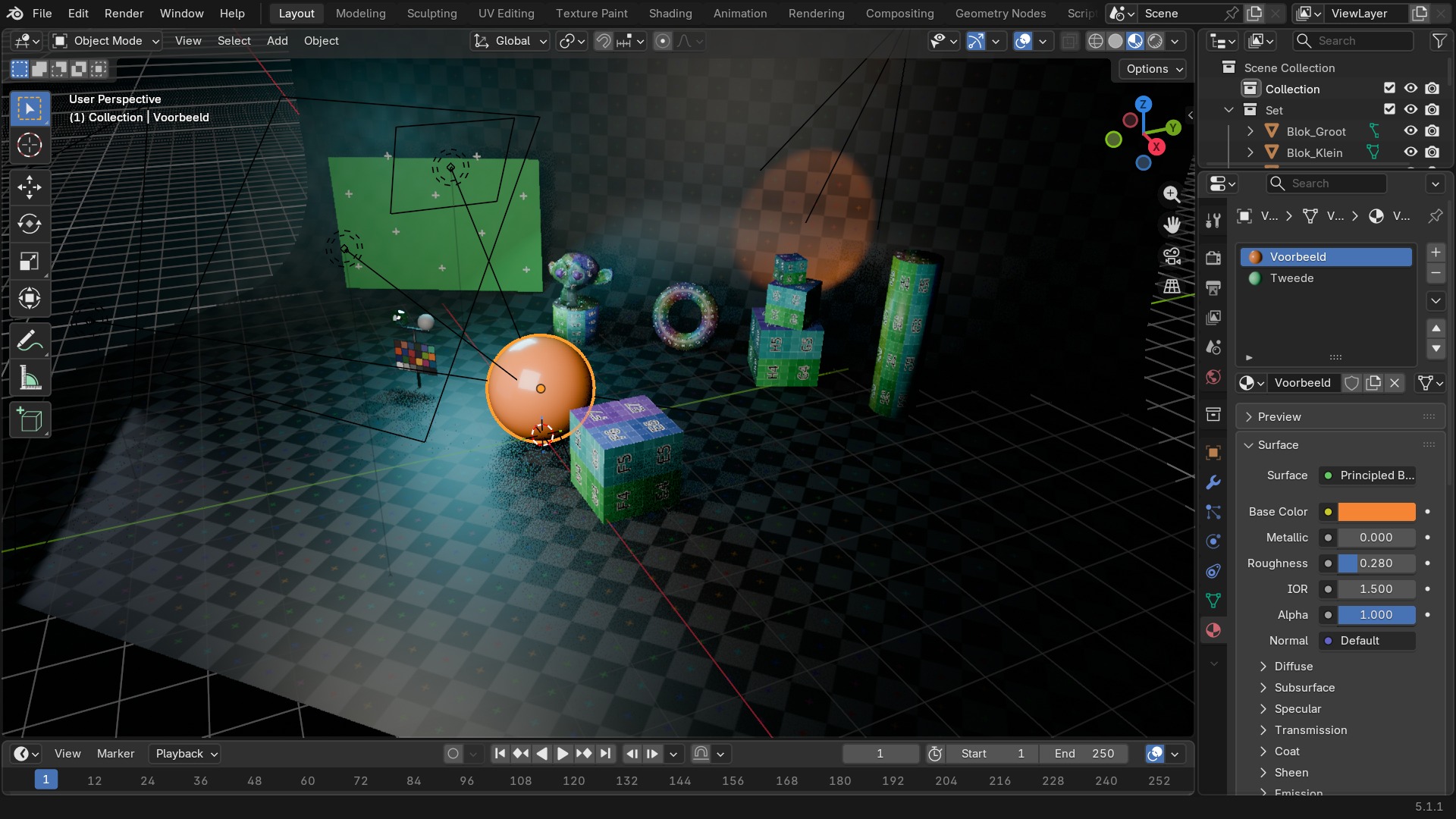
Bij Cycles krijgt de tab drie extra ingangen die in de Shader Editor als aparte Material Output-sockets staan: Surface (het oppervlak-shader-netwerk, meestal de Principled BSDF), Volume (voor rook, mist of een doorschijnend binnenste, onafhankelijk van het oppervlak), en Displacement (verplaatst werkelijke geometrie op basis van een textuur, in plaats van alleen de belichting te foppen zoals een normal map doet).
Settings > Displacement Method kiest tussen Bump Only (goedkoop, geen echte geometrie-verandering), Displacement Only (vereist voldoende onderverdeling om details te tonen) en Displacement and Bump (een combinatie voor grove vorm via displacement en fijn detail via bump).
 RECBLENDER 5.1 · MATERIAL-DISPLACEMENT00:00:00:001920×1080
Zelf proberen: twee materialen op één mesh
Wijs twee materialen toe aan verschillende delen van dezelfde mesh via face-selectie.
- 1Open
blends/start_material_assign.blend(een kubus met één materiaal). - 2Voeg in Material Properties een tweede slot toe met New.
- 3Ga naar Edit Mode, selecteer de bovenste face, en klik Assign onder het tweede slot.
- 4Terug in Object Mode: de bovenkant heeft nu een ander materiaal dan de rest.
- 5Wissel Blend Mode van het tweede materiaal naar Alpha Blend en zet een lage Alpha om het effect te zien.