Hoofdstuk 56World
De achtergrond en de omgevingsverlichting van de hele scène
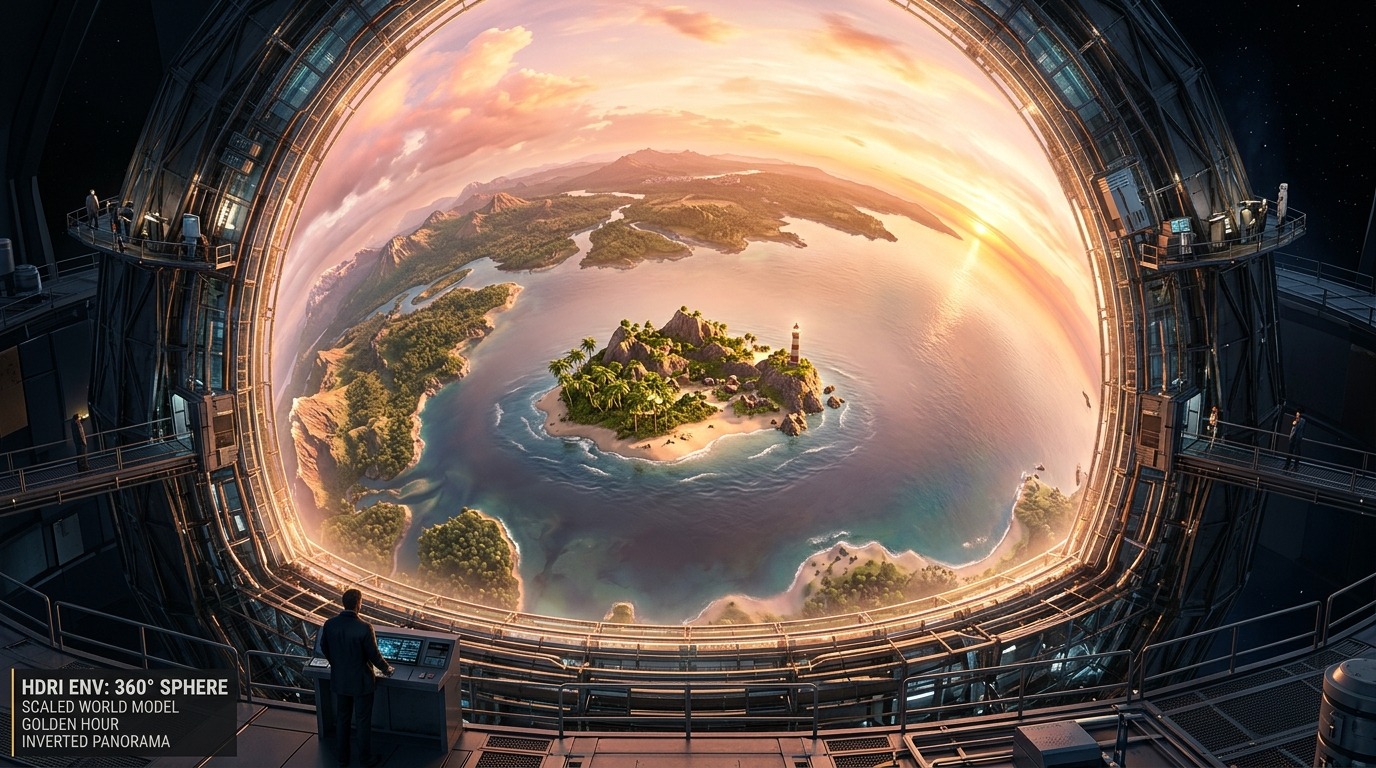
De World Properties-tab is het materiaal van de omgeving zelf: de kleur of HDRI die je ziet als er niets anders in beeld staat, én de lichtbron die van alle kanten strooilicht op elk object werpt. Net als een materiaal is World een node-datablock, met een eigen Surface- en Volume-ingang.
 RECCONCEPT00:00:00:00schoolium
Wat deze tab doet
De World Properties-tab (het wereldbol-icoon) bepaalt wat je ziet waar geen object staat, en welk omgevingslicht van alle richtingen tegelijk op de scène valt. In de eenvoudigste vorm is dat een effen kleur met een Strength; schakel je Use Nodes in (standaard aan), dan kan je in de Shader Editor een Environment Texture-node met een HDRI-bestand aansluiten voor realistische, fotografisch vastgelegde omgevingsverlichting.
Een scène heeft meestal één actieve World, gekoppeld via de Scene-tab (hoofdstuk 55), maar een .blend-bestand kan er meerdere bevatten — handig om snel van een studio-opstelling naar een buitenopname te wisselen.
 RECBLENDER 5.1 · WORLD00:00:00:001920×1080
Alle world-instellingen
Rechtstreeks uit Blender 5.1 uitgelezen.
| Instelling | Type | Standaard | Bereik | Wat hij doet (tooltip uit Blender) |
|---|---|---|---|---|
| Name | STRING | – | – | Unique data-block ID name (within a same type and library) |
| Full Name | STRING | – | – | Unique data-block ID name, including library one if any |
| Type | ENUM | ACTION | Action, Armature, Brush, Cache File, Camera, Collection, Curve, Curves, Font, Grease Pencil, Grease Pencil v3, Image, Key, Lattice, Library, Light, Light Probe, Line Style, Mask, Material, Mesh, Metaball, Movie Clip, Node Tree, Object, Paint Curve, Palette, Particle, Point Cloud, Scene, Screen, Sound, Speaker, Text, Texture, Volume, Window Manager, Workspace, World | Type identifier of this data-block |
| Session UID | INT | 0 | -10000 – 10000 | A session-wide unique identifier for the data block that remains the same across renames and internal reallocations, unchanged when reloading the file |
| Is Evaluated | BOOLEAN | uit | – | Whether this ID is runtime-only, evaluated data-block, or actual data from .blend file |
| Users | INT | 0 | 0 – 10000 | Number of times this data-block is referenced |
| Fake User | BOOLEAN | uit | – | Save this data-block even if it has no users |
| Extra User | BOOLEAN | uit | – | Indicates whether an extra user is set or not (mainly for internal/debug usages) |
| Embedded Data | BOOLEAN | uit | – | This data-block is not an independent one, but is actually a sub-data of another ID (typical example: root node trees or master collections) |
| Linked Packed | BOOLEAN | uit | – | This data-block is linked and packed into the .blend file |
| Missing Data | BOOLEAN | uit | – | This data-block is a place-holder for missing linked data (i.e. it is [an override of] a linked data that could not be found anymore) |
| Runtime Data | BOOLEAN | uit | – | This data-block is runtime data, i.e. it won't be saved in .blend file. Note that e.g. evaluated IDs are always runtime, so this value is only editable for data-blocks in Main data-base. |
| Editable | BOOLEAN | uit | – | This data-block is editable in the user interface. Linked data-blocks are not editable, except if they were loaded as editable assets. |
| Tag | BOOLEAN | uit | – | Tools can use this to tag data for their own purposes (initial state is undefined) |
| Is Indirect | BOOLEAN | uit | – | Is this ID block linked indirectly |
| Finite Volume | BOOLEAN | uit | – | The world's volume used to be rendered by EEVEE Legacy. Conversion is needed for it to render properly. |
| Color | FLOAT | 0.05 | 0 – 1 | Color of the background |
| Use Nodes | BOOLEAN | uit | – | Use shader nodes to render the world |
| Lightgroup | STRING | – | – | Lightgroup that the world belongs to |
| Resolution | ENUM | 1024 | 128, 256, 512, 1024, 2048, 4096 | Resolution when baked to a texture |
| Sun Threshold | FLOAT | 10 | 0 – onbegrensd | If non-zero, the maximum value for world contribution that will be recorded inside the world light probe. The excess contribution is converted to a sun light. This reduces the light bleeding caused by very bright light sources. |
| Sun Angle | FLOAT | 0.009 | 0 – 3.1416 | Angular diameter of the Sun as seen from the Earth |
| Use Shadow | BOOLEAN | aan | – | Enable sun shadow casting |
| Shadows Resolution Limit | FLOAT | 0.001 | 0.00010 – 0.02 | Maximum size of a shadow map pixel. Higher values use less memory at the cost of shadow quality. |
| Shadow Filter Radius | FLOAT | 1 | 0 – 5 | Blur shadow aliasing using Percentage Closer Filtering |
| Shadow Jitter | BOOLEAN | uit | – | Enable jittered soft shadows to increase shadow precision (disabled in viewport unless enabled in the render settings). Has a high performance impact. |
| Shadow Jitter Overblur | FLOAT | 10 | 0 – 20 | Apply shadow tracing to each jittered sample to reduce under-sampling artifacts |
Van kleur naar HDRI
- 1Color
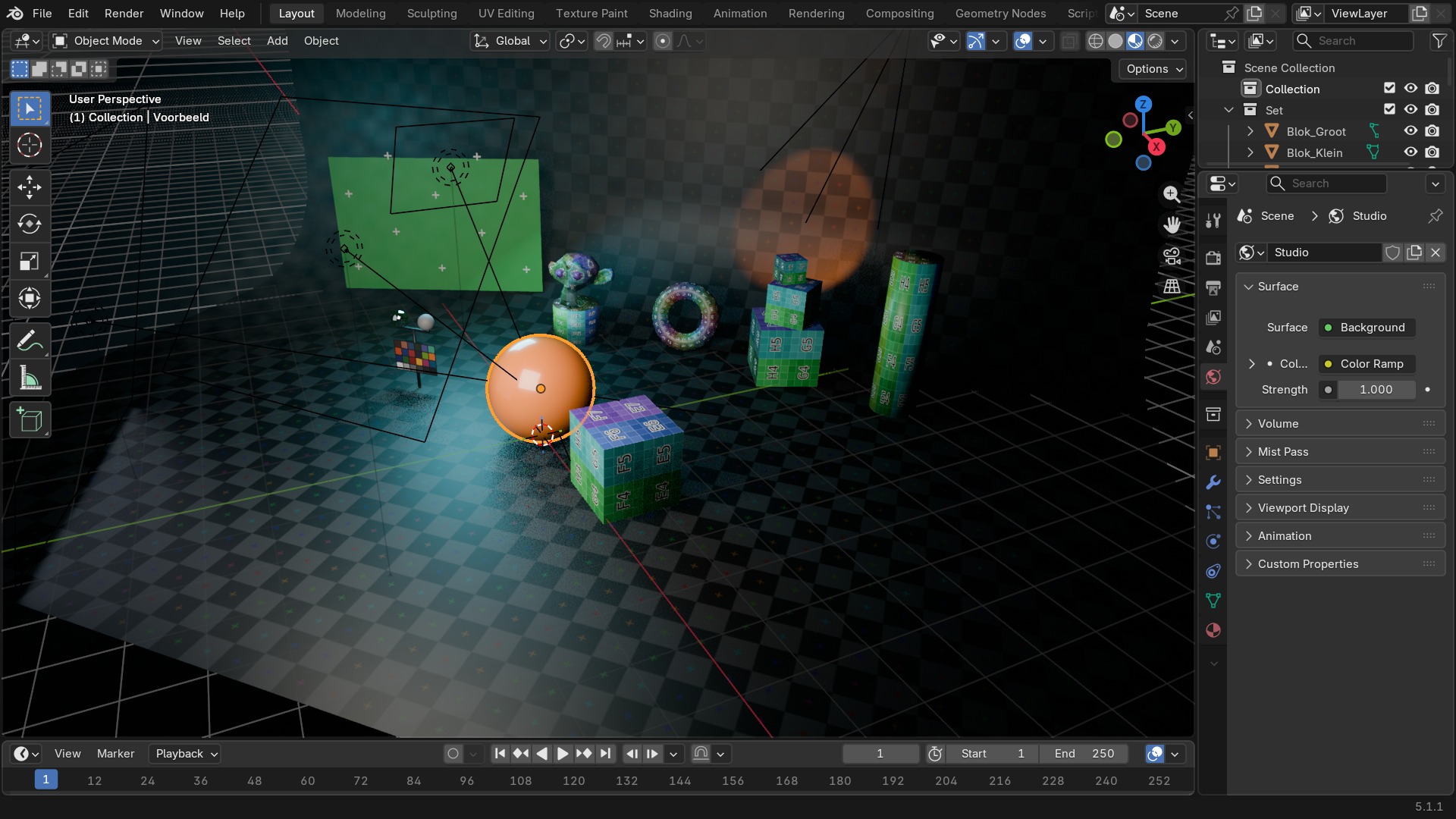
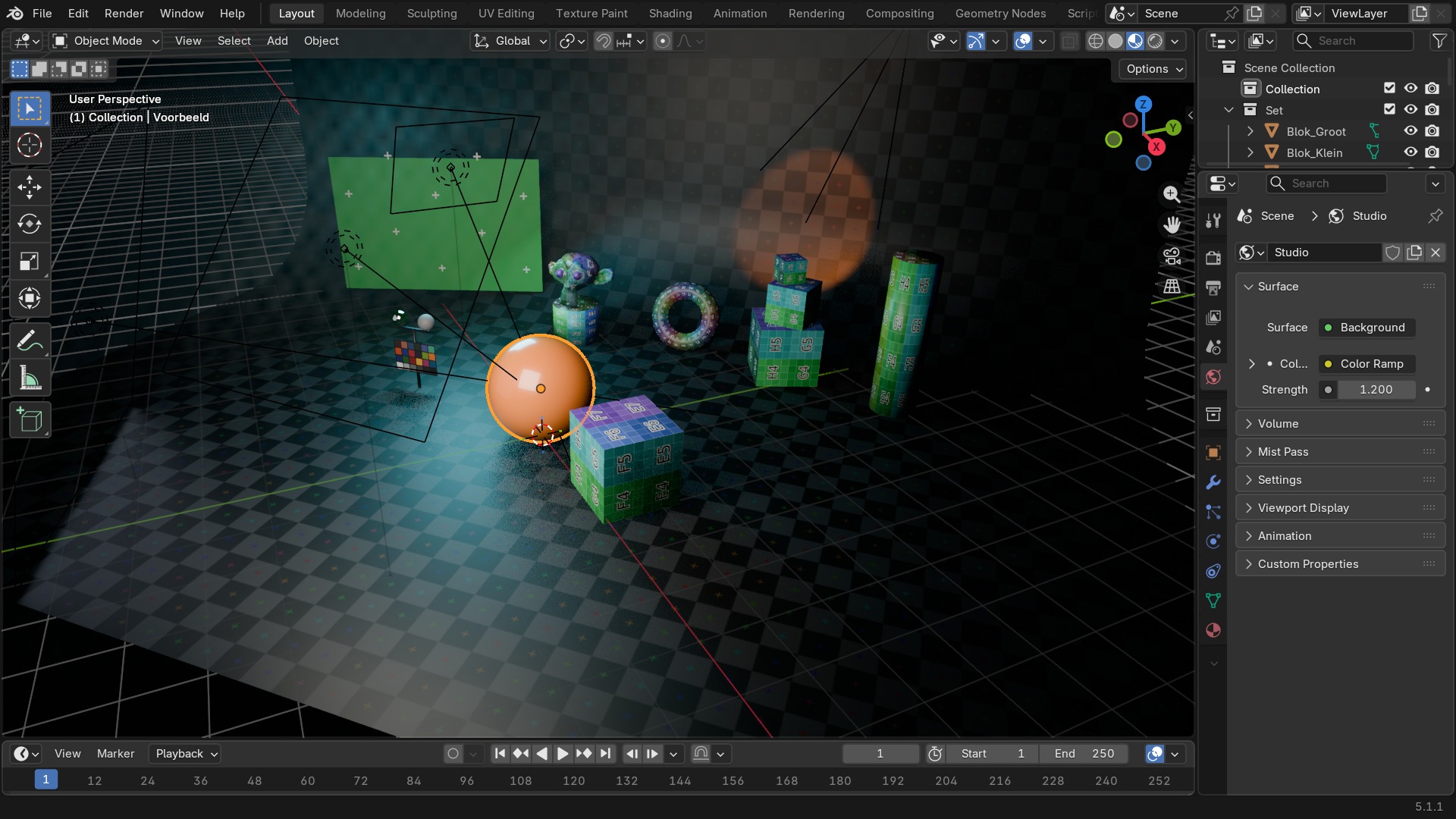
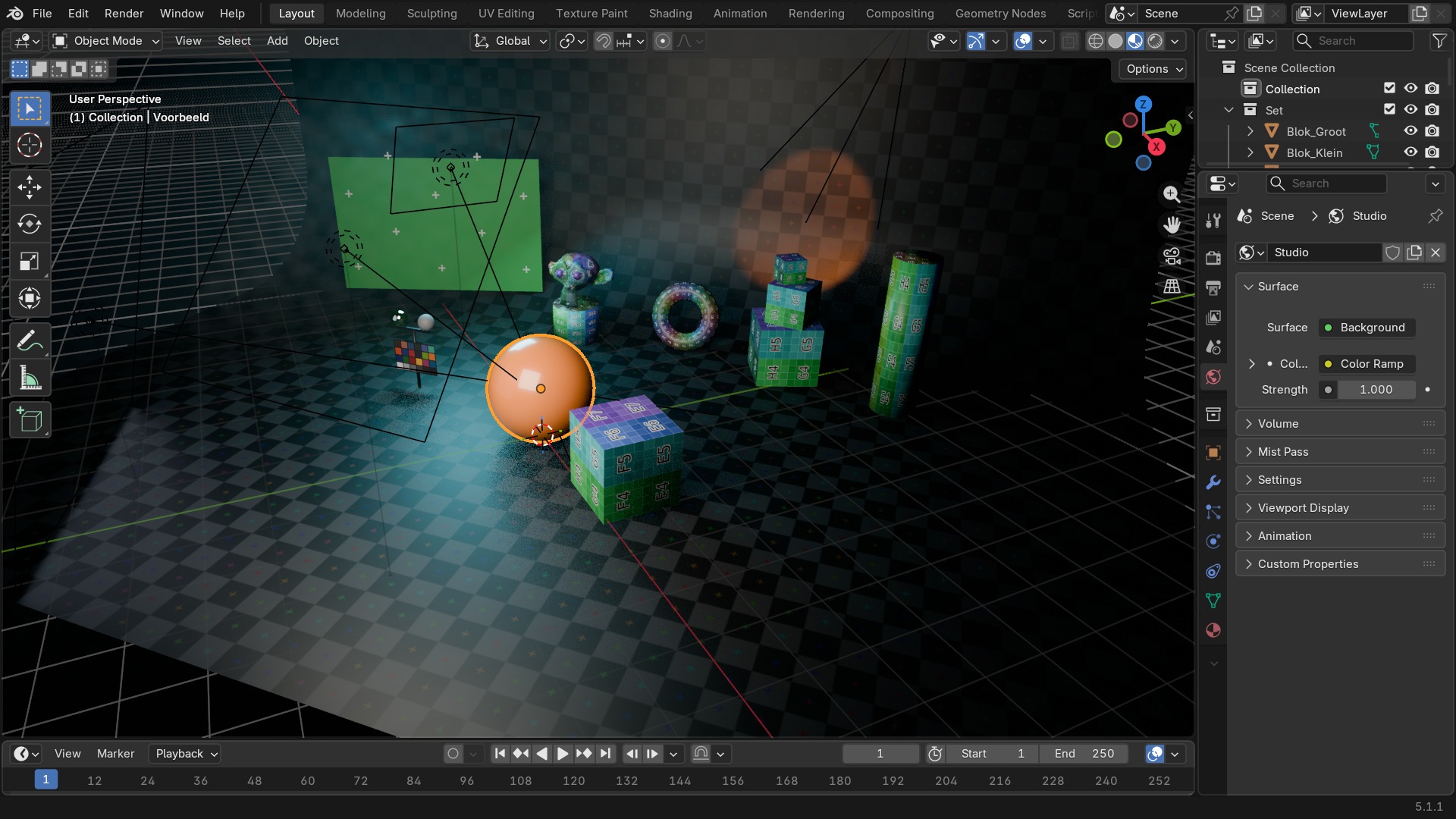
De Color-ingang van de Background-node — hier via een Color Ramp aangestuurd; zonder nodes is dit gewoon één effen kleur, de snelste manier om een neutrale studio-achtergrond te zetten.
- 2Strength
De helderheid van het omgevingslicht; te hoog wast het contrast van je hoofdlicht uit.
- 3Surface
Hier hangt de Background-node, waarvan de Color-ingang een Environment Texture kan zijn.
- 4Mist Pass
Een afstandsgebaseerde waas die je apart als render-pass kan meesturen naar de Compositor — het ingeklapte paneel net onder Volume.
Sun-detectie in EEVEE Next
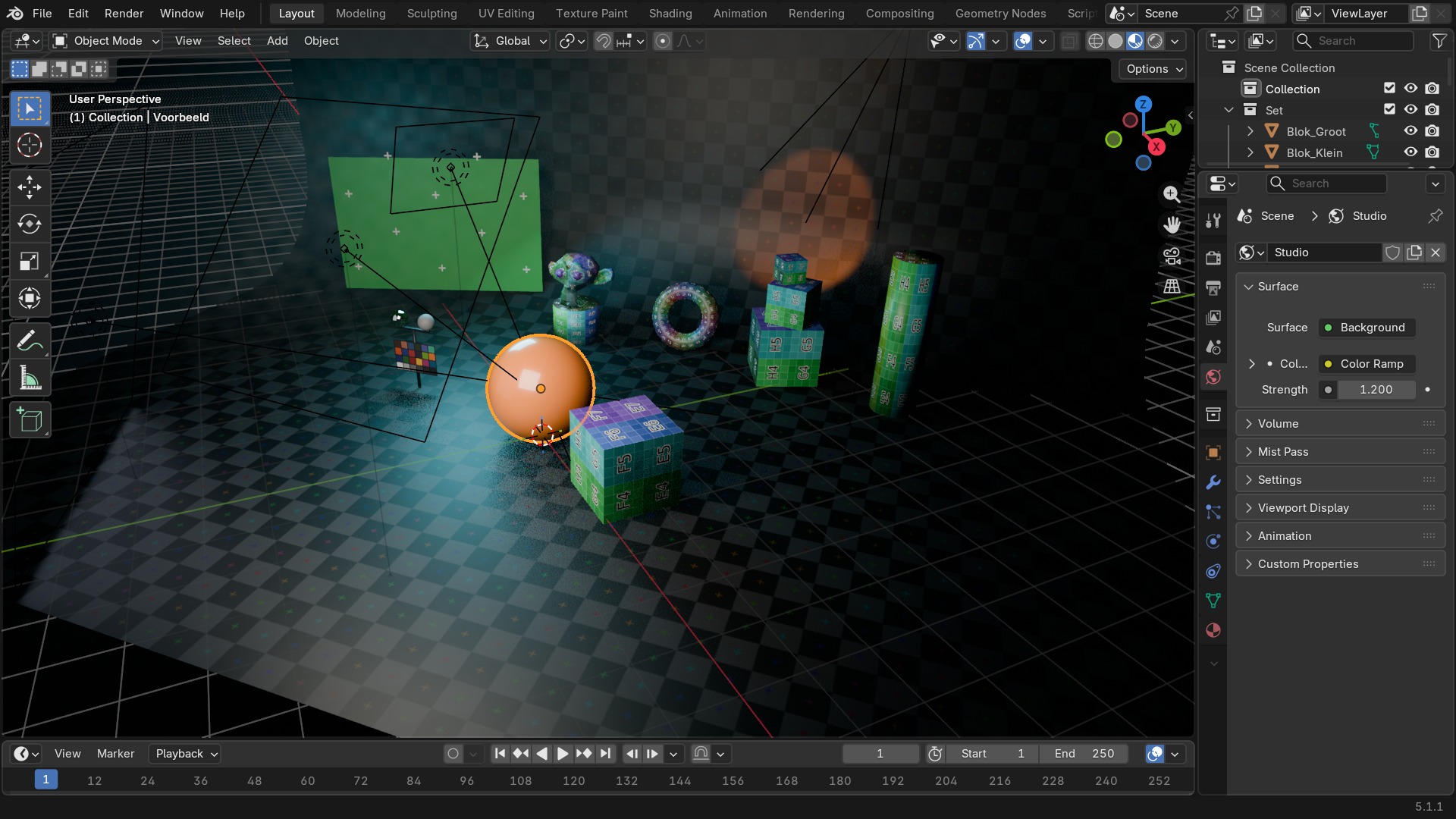
EEVEE Next kan uit een heldere HDRI automatisch de positie van de zon halen en daar een virtuele zon-schaduw van maken, geregeld via Sun Threshold en Sun Angle — dat maakt scherpe contactschaduwen mogelijk zonder dat je zelf een Sun-lamp hoeft toe te voegen. Staat de HDRI-lichtbron niet scherp genoeg af, dan blijven de schaduwen zacht en diffuus, wat er in een buitenscène al snel vlak uitziet.
In Cycles bestaat deze automatische zon-detectie niet; daar geeft een heldere HDRI van nature al scherpe schaduwen via path tracing, zonder extra instelling.
 RECBLENDER 5.1 · WORLD-SUNDETECT00:00:00:001920×1080
World in Cycles: Visibility en Mist
Cycles Visibility (onder World, Cycles-instellingen) laat je de World apart zichtbaar maken of net verbergen voor camera-, diffuse-, glossy- of transmissierays — zo kan je bijvoorbeeld wél de HDRI-reflectie in glas zien, maar niet de HDRI zelf op de achtergrond (die vervang je dan met een Film > Transparent-render).
Mist Pass heeft een eigen Start, Depth en Falloff die losstaan van de World-kleur zelf: het is een afstandsmasker, geen zichtbare mist in de render — die teken je pas met een Compositor-node die deze pass gebruikt.
 RECBLENDER 5.1 · WORLD-MIST00:00:00:001920×1080
Zelf proberen: van grijze studio naar HDRI
Vervang een effen grijze World door een HDRI-omgevingskaart en stel de sterkte bij tot het onderwerp goed belicht is.
- 1Open
blends/start_world_hdri.blend(een object op een effen grijze World). - 2Zet in World Properties, Surface, de Color-node om in een Environment Texture (Shift+A in de Shader Editor).
- 3Laad een HDRI-bestand en render met F12.
- 4Regel Strength bij tot de belichting klopt met het onderwerp.
- 5Vergelijk EEVEE Next en Cycles: let op het verschil in schaduwscherpte.