Hoofdstuk 17Preferences — Interface
De eerste tab: hoe Blender er zelf uitziet, los van je scene
De tab Interface bepaalt de schil rond alles wat je in Blender doet: de schaal van de UI, hoe menu's zich gedragen, welke taal je ziet, en wat er in de statusbalk staat. Dit is de tab waar bijna elke nieuwe gebruiker als eerste iets aanpast — meestal de UI Scale.
 RECCONCEPT00:00:00:00schoolium
De Preferences-editor: hoe hij is opgebouwd
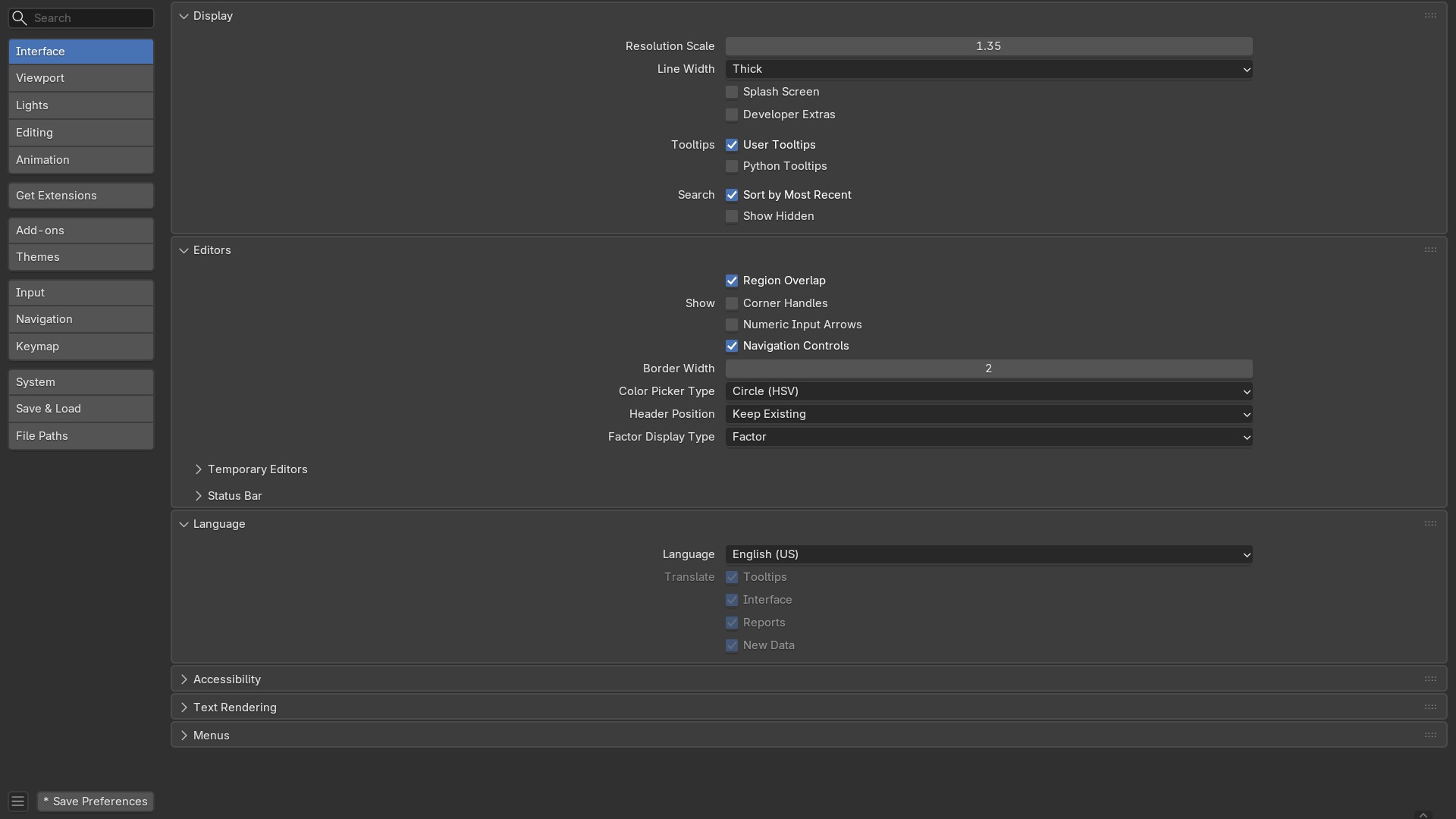
- 1Tabkolom links
Interface, Themes, Viewport, Lights, Editing, Animation, Extensions/Add-ons, Input, Navigation, Keymap, System, Save & Load, File Paths, Experimental — de veertien tabs die dit hele deel doorloopt.
- 2Zoekveld bovenaan
Doorzoekt élke instelling in élke tab tegelijk — vaak sneller dan zelf naar de juiste tab navigeren als je alleen de naam van een optie kent.
- 3Onderbalk: Save Preferences en het hamburgermenu
Preferences worden apart van je .blend-bestand bewaard (hoofdstuk 27); dit is waar je dat expliciet doet, of instelt dat het automatisch gebeurt.
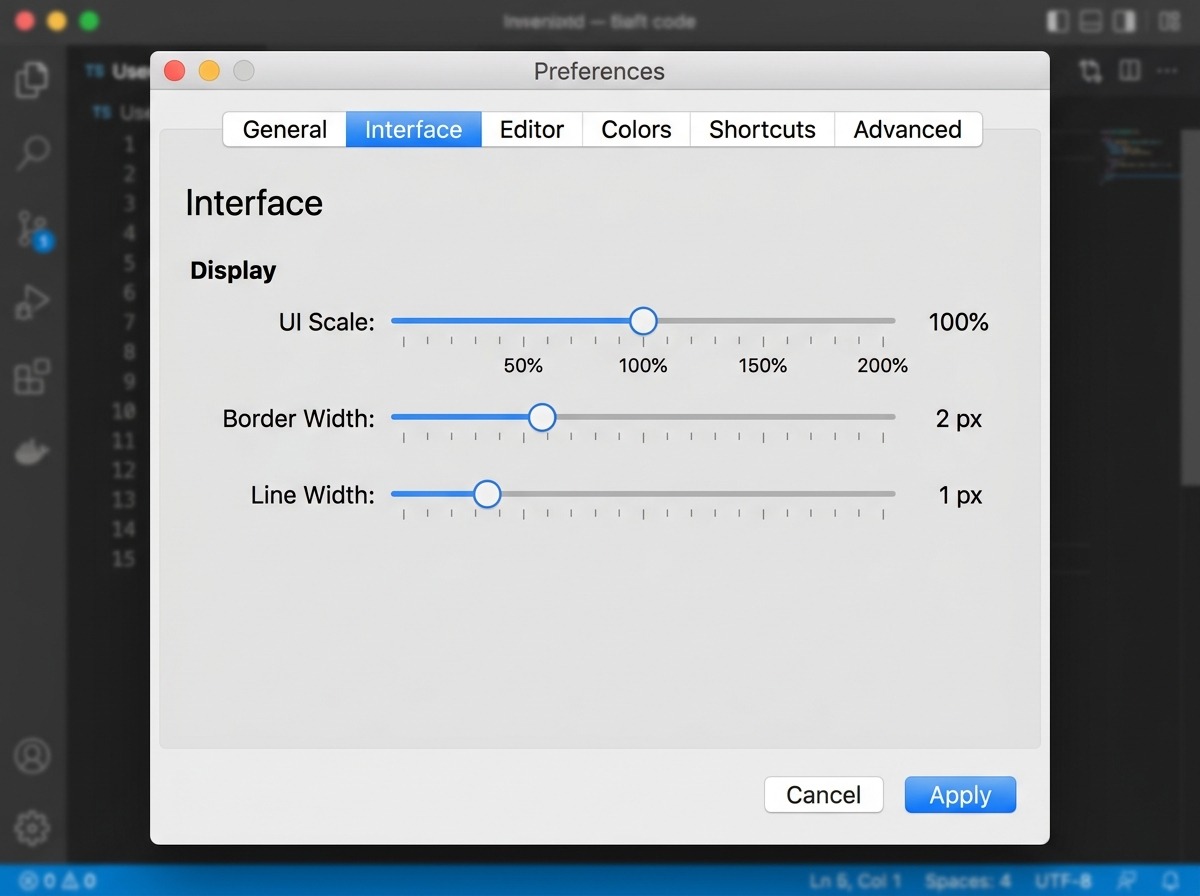
UI Scale, Border Width, Line Width — de eerste indruk
UI Scale is een vermenigvuldigingsfactor op alles: tekstgrootte, knophoogte, padding. Op een 4K-scherm zonder besturingssysteem-schaling is dit vaak de eerste instelling die iemand aanpast, want zonder schaling is de standaard-UI op zo'n scherm onleesbaar klein. Border Width bepaalt hoe dik de rand tussen twee areas is (deel A, hoofdstuk 4) — smaller geeft meer werkruimte, breder maakt de rand makkelijker te grijpen. UI Line Width stuurt de dikte van lijnen in de interface zelf (niet in de 3D-viewport).
Deze drie zijn de instellingen die je het snelst weer terugdraait als je ze verkeerd inschat: te grote UI Scale kost bruikbare schermruimte, te kleine maakt kleine knoppen moeilijk te raken.
 RECCONCEPT00:00:00:00schoolium
Tooltips en Developer Extras
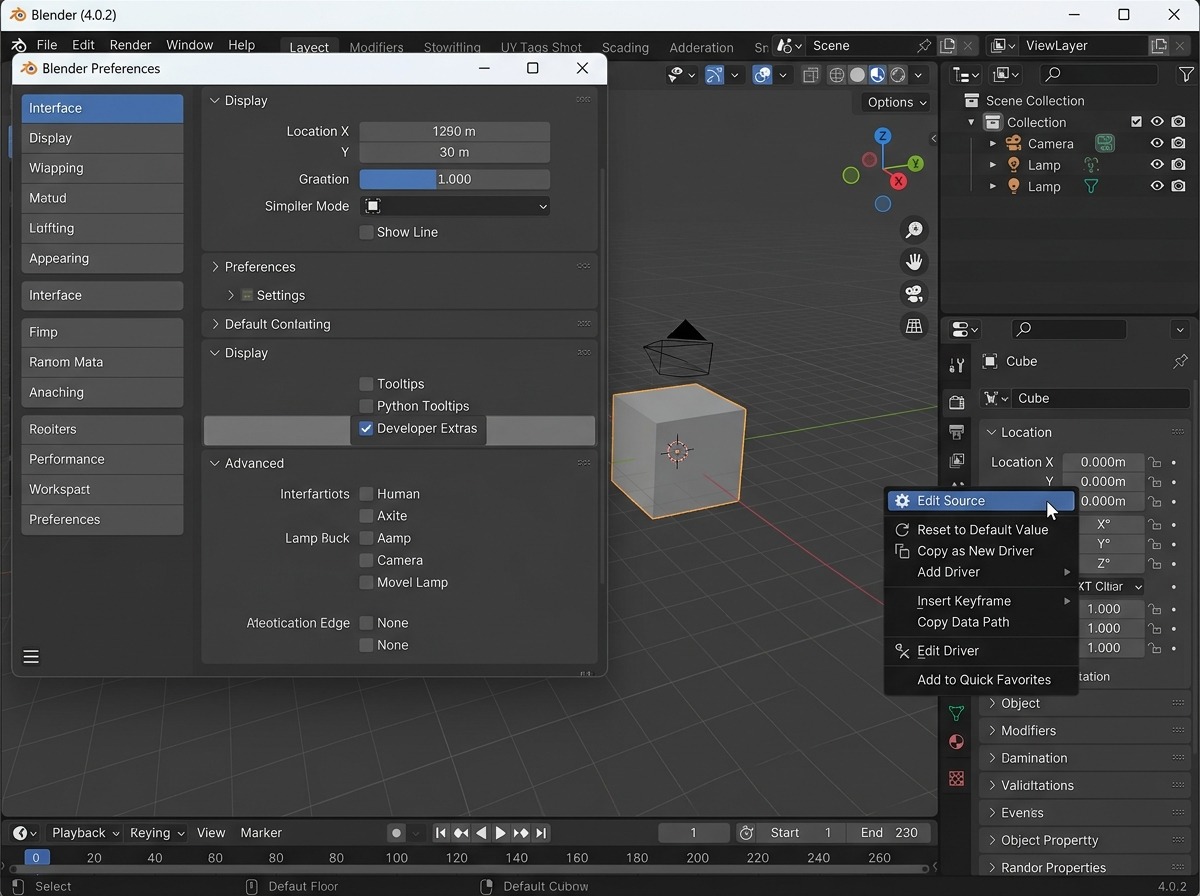
Tooltips uitzetten verwijdert de zwevende uitlegballonnetjes volledig; de meeste mensen laten die aan, maar Python Tooltips is de instelling die je als scripter wél aanzet — dan toont elke tooltip ook de onderliggende Python data-path (bv. bpy.context.object.location), precies wat je nodig hebt om diezelfde waarde in een script aan te spreken.
Developer Extras (Show Developer Ui) ontgrendelt extra contextmenu-items door de hele interface: Edit Source (springt naar de Python-broncode van een operator), Copy Data Path, en debug-informatie in sommige panelen. Zonder programmeerplannen laat je dit uit — het voegt vooral ruis toe aan contextmenu's.
 RECCONCEPT00:00:00:00schoolium
Interface — Taal, tekstweergave en statusbalk
| Instelling | Type | Standaard | Bereik | Wat hij doet (tooltip uit Blender) |
|---|---|---|---|---|
| Tooltips | BOOLEAN | aan | – | Display tooltips (when disabled, hold Alt then hover to force display) |
| Python Tooltips | BOOLEAN | uit | – | Show Python references in tooltips |
| Developer Extras | BOOLEAN | uit | – | Display advanced settings and tools for developers |
| Display Object Info | BOOLEAN | aan | – | Include the name of the active object and the current frame number in the text info overlay |
| Display View Name | BOOLEAN | aan | – | Include the name of the view orientation in the text info overlay |
| Display Playback Frame Rate (FPS) | BOOLEAN | aan | – | Include the number of frames displayed per second in the text info overlay while animation is played back |
| FPS Average Samples | INT | 8 | 0 – 500 | The number of frames to use for calculating FPS average. Zero to calculate this automatically, where the number of samples matches the target FPS. |
| Text Anti-Aliasing | BOOLEAN | aan | – | Smooth jagged edges of user interface text |
| Text Subpixel Anti-Aliasing | BOOLEAN | uit | – | Render text for optimal horizontal placement |
| Text Hinting | ENUM | AUTO | Auto, None, Slight, Full | Method for making user interface text render sharp |
| Interface Font | STRING | – | – | Path to interface font |
| Monospaced Font | STRING | – | – | Path to interface monospaced Font |
| Language | ENUM | DEFAULT | Automatic, Abkhaz - Аԥсуа бызшәа, Arabic - ﺔﻴﺑﺮﻌﻟﺍ, Basque - Euskara, Belarusian - Беларуская, Bulgarian - Български, Catalan - Català, Chinese (Simplified) - 简体中文, Chinese (Traditional) - 繁體中文, Czech - Čeština, Danish - Dansk, Dutch - Nederlands, English (UK), English (US), Esperanto - Esperanto, Finnish - Suomi, French - Français, Georgian - ქართული, German - Deutsch, Greek - Ελληνικά, Hebrew - תירִבְעִ, Hindi - हिन्दी, Hungarian - Magyar, Indonesian - Bahasa indonesia, Italian - Italiano, Japanese - 日本語, Korean - 한국어, Kyrgyz - Кыргыз тили, Lithuanian - Lietuviškai, Malayalam - മലയാളം, Norwegian (Bokmål) - Norsk bokmål, Persian - ﯽﺳﺭﺎﻓ, Polish - Polski, Portuguese (Brazil) - Português brasileiro, Portuguese (Portugal) - Português europeu, Romanian - Român, Russian - Русский, Serbian (Cyrillic) - Српски, Serbian (Latin) - Srpski latinica, Slovak - Slovenčina, Slovenian - Slovenščina, Spanish - Español, Swahili - Kiswahili, Swedish - Svenska, Tamil - தமிழ், Thai - ภาษาไทย, Turkish - Türkçe, Ukrainian - Українська, Urdu - وُدرُا, Vietnamese - Tiếng Việt | Language used for translation |
| Translate Tooltips | BOOLEAN | aan | – | Translate the descriptions when hovering UI elements (recommended) |
| Translate Interface | BOOLEAN | aan | – | Translate all labels in menus, buttons and panels (note that this might make it hard to follow tutorials or the manual) |
| Translate Reports | BOOLEAN | aan | – | Translate additional information, such as error messages |
| Translate New Names | BOOLEAN | aan | – | Translate the names of new data-blocks (objects, materials...) |
| Show Memory | BOOLEAN | uit | – | Show Blender memory usage |
| Show VRAM | BOOLEAN | uit | – | Show GPU video memory usage |
| Show Version | BOOLEAN | aan | – | Show Blender version string |
| Show Statistics | BOOLEAN | uit | – | Show scene statistics |
| Show Scene Duration | BOOLEAN | uit | – | Show scene duration |
| Extensions Updates | BOOLEAN | aan | – | Show Extensions Update Count |
De statusbalk zelf ontleed
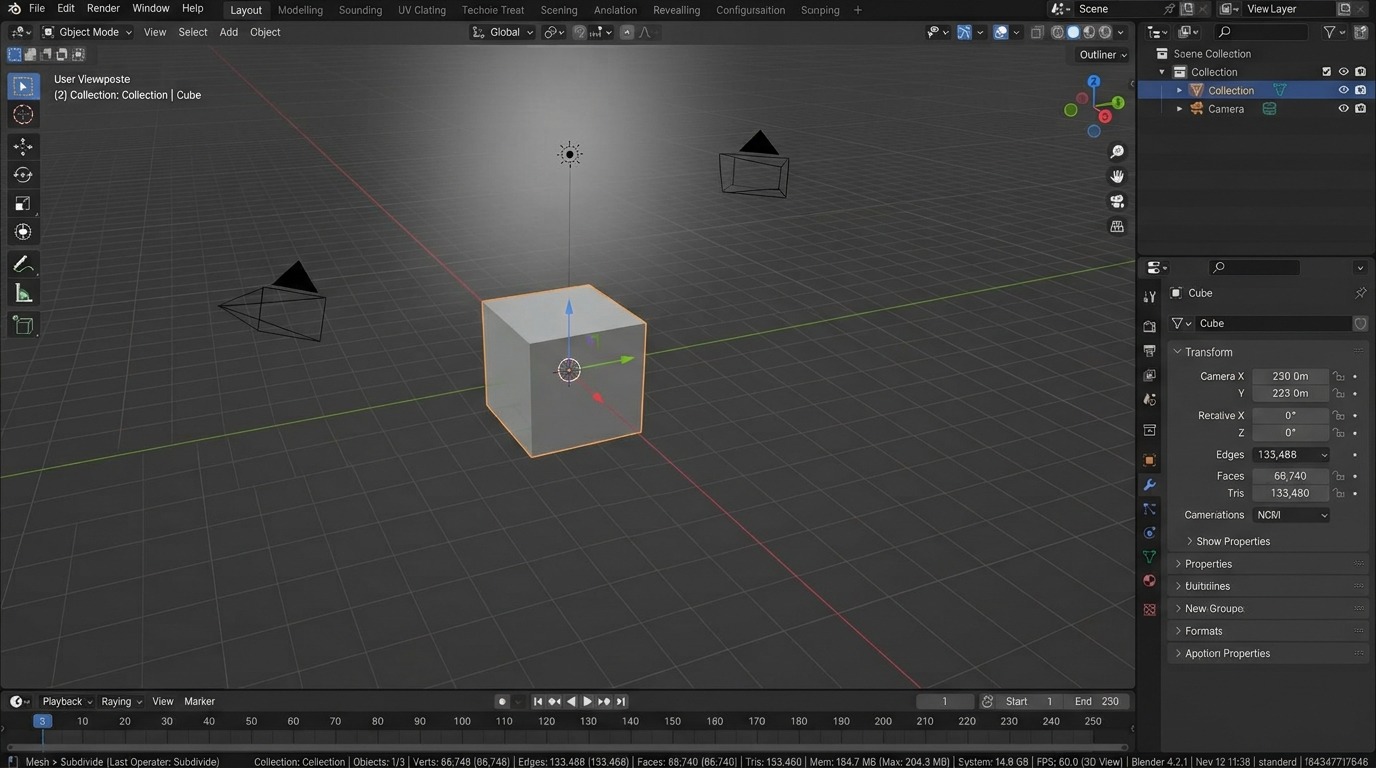
- 1Scene-statistieken
Aantal vertices, faces, objecten — aan/uit via het rechtsklik-contextmenu op de statusbalk zelf, niet via Preferences.
- 2Memory / VRAM
show_statusbar_memory en show_statusbar_vram: live geheugengebruik, nuttig om te zien wanneer een zware scene tegen een limiet aanloopt.
- 3Version / Scene Duration
show_statusbar_version toont de build; show_statusbar_scene_duration de totale lengte van de tijdlijn in seconden naast het framegetal.
Zelf proberen: de interface aanpassen aan je scherm
Stel UI Scale, taal en de statusbalk in op wat voor jouw scherm en werktaal het prettigst is, en bewaar dat als je standaard.
- 1Open Preferences → Interface en verhoog of verlaag UI Scale in stappen van 0.1 tot de tekst goed leesbaar is zonder ruimte te verspillen.
- 2Zet Python Tooltips aan en hover over een willekeurige knop in de 3D-viewport om de data-path te zien verschijnen.
- 3Ga naar Language en kies, als je dat wil, Nederlands voor de interface; zet Translate Tooltips apart aan of uit om het verschil te zien.
- 4Zet in het contextmenu van de statusbalk en in Preferences → Interface de VRAM- en Memory-weergave aan.
- 5Sla je Preferences op (Ctrl S in de Preferences-editor, of het hamburgermenu → Save Preferences) zodat dit de volgende keer terugkomt.